User Management
User Management
In Uniconnect AI, a user is a person in the organization who accesses the system to manage customer and business records. Users can work with their own records or records shared by other users, depending on their permissions.(link to Role Management) Some users may also have administrative rights to manage and maintain the CRM system.
Administrators can add and manage users in the Uniconnect AI account, allowing employees to access the system and perform their daily tasks independently.
Adding users depends on the organization’s subscription plan and the number of available user licenses. Each user logs in using a unique email address and password. Every user is also assigned a profile and a role. The profile controls the features a user can access, while the role determines the level of data the user can view based on the organization’s hierarchy.
Types of Users
System Owner
System Owners are users who have full access to the Uniconnect AI. They can manage system settings, configure modules, and control user access across the organization. There must be at least one administrator who has complete access to all data and features in the CRM account.
Example: CEO, system administrator, or other top-level management responsible for overseeing the system.
Standard Users
Standard users are employees who use Uniconnect AI for their daily tasks. Their access to data and features is determined by their assigned roles and profiles within the organization.
Example: Sales representatives, sales managers, marketing staff, and customer support agents.
Add Users
To add User,
- Log in to Uniconnect AI with Create User Permission. (link to Role Management)
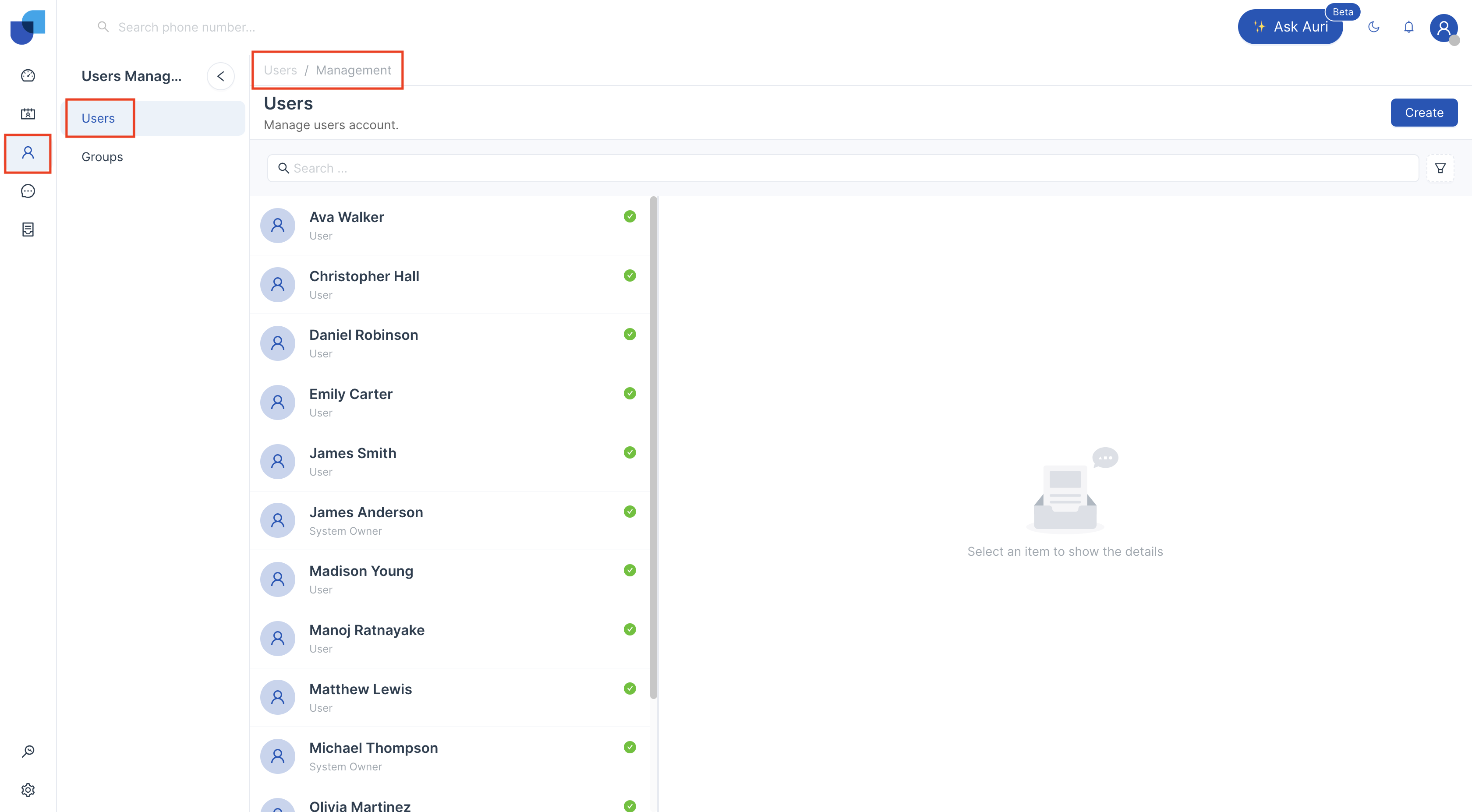
- Go to User Management > Users.
-
In the Users page, click Create.
-
In the Create page, enter the required details:
- First Name & Last Name: mandatory.
- Email: Enter a valid email address that has not been used for another Uniconnect AI user account.
An invitation will be sent to this email address. - Phone Number: Enter a valid phone number.
- Role: Select the user’s role in the organization.
- Multi-Factor Authentication: Enable or disable 2FA Authentication.
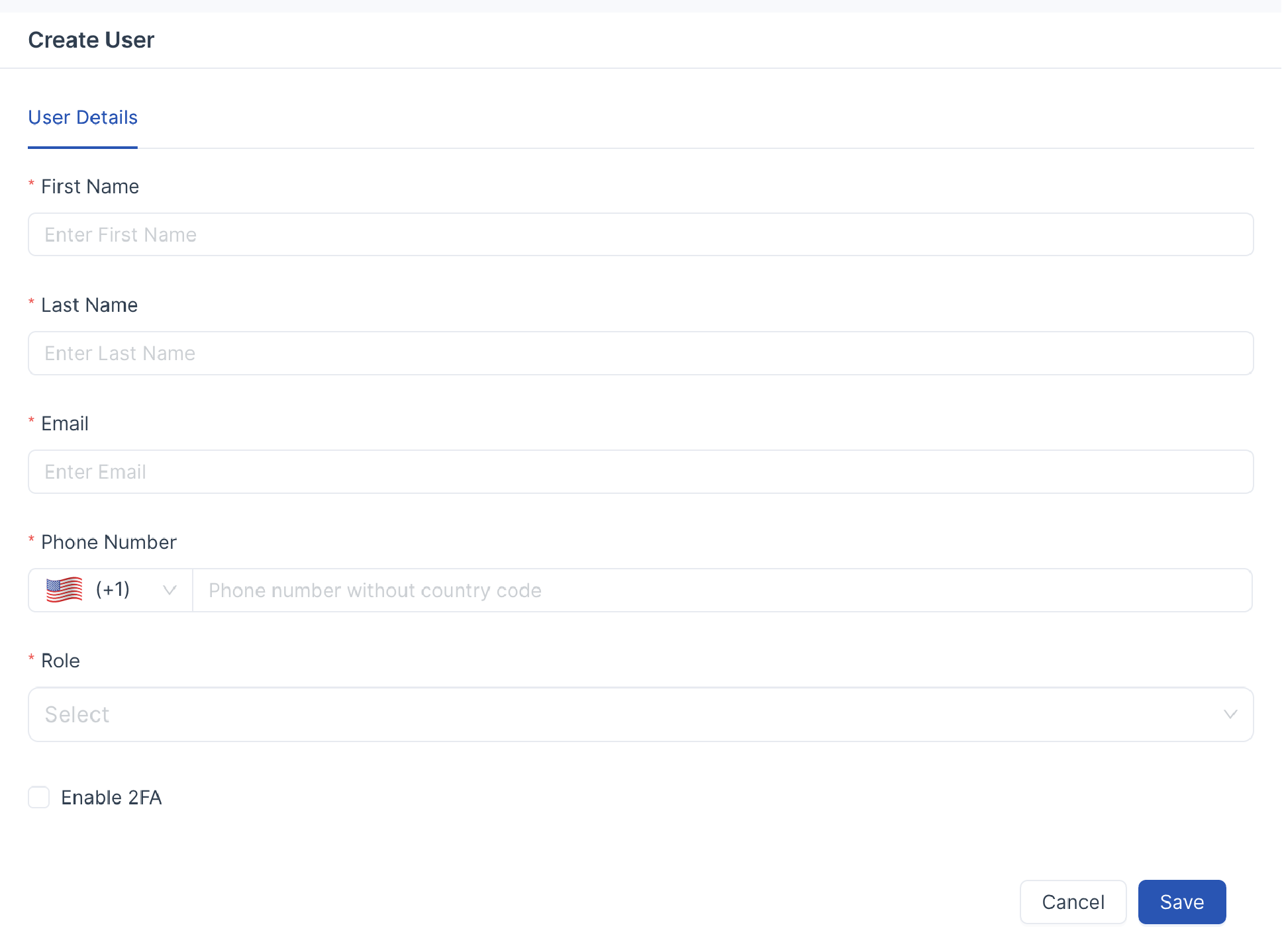
- Click Save.
Once the user is added, the system sends an invitation email to the provided email address. The user account becomes active only after the invitation is accepted.
User Management Permissions in Uniconnect AI CRM
Users who have the Manage Users permission in their profile can access the Users list and perform tasks such as adding new users, editing user information, and viewing the applications or features assigned to each user. Before adding users, it is recommended to first create the required roles and profiles, as these will need to be assigned during user creation.
Permission Required
Only users with the Manage Users permission in their profile can add or edit users in Uniconnect AI CRM. (link to Role Management)
Modify Users
When adding a user in Uniconnect AI, basic information such as first name, last name, email address, role must first be specified. Existing details can be modified later, and additional user settings can be enabled as required. These settings may include Auto Answer Mode, Auto Gain Control, Echo Cancellation, Noise Reduction, System Log Level, and Audio Video Codecs.
To modify user,
-
Log in to Uniconnect AI with Edit User Permission. (link to Role Management)
-
Go to User Management > Users.
-
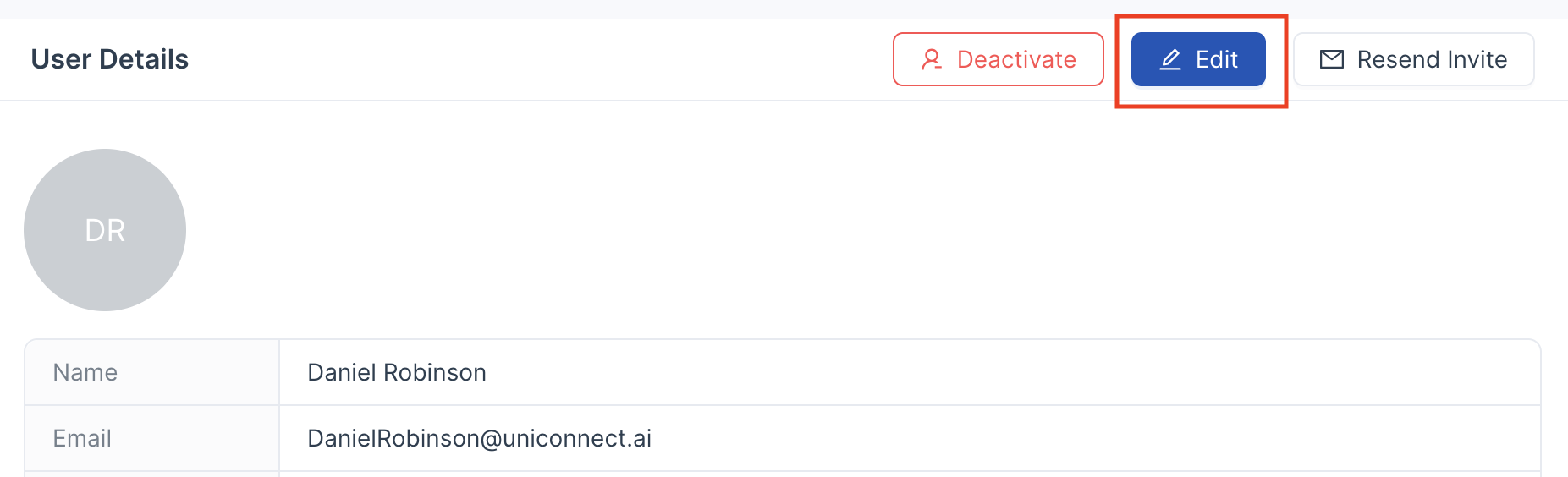
Open a user > Click Edit.
Re-invite Users
If a user does not accept the invitation, the administrator/user can resend the invitation.
To re-invite a user,
-
Go to User Management > Users.
-
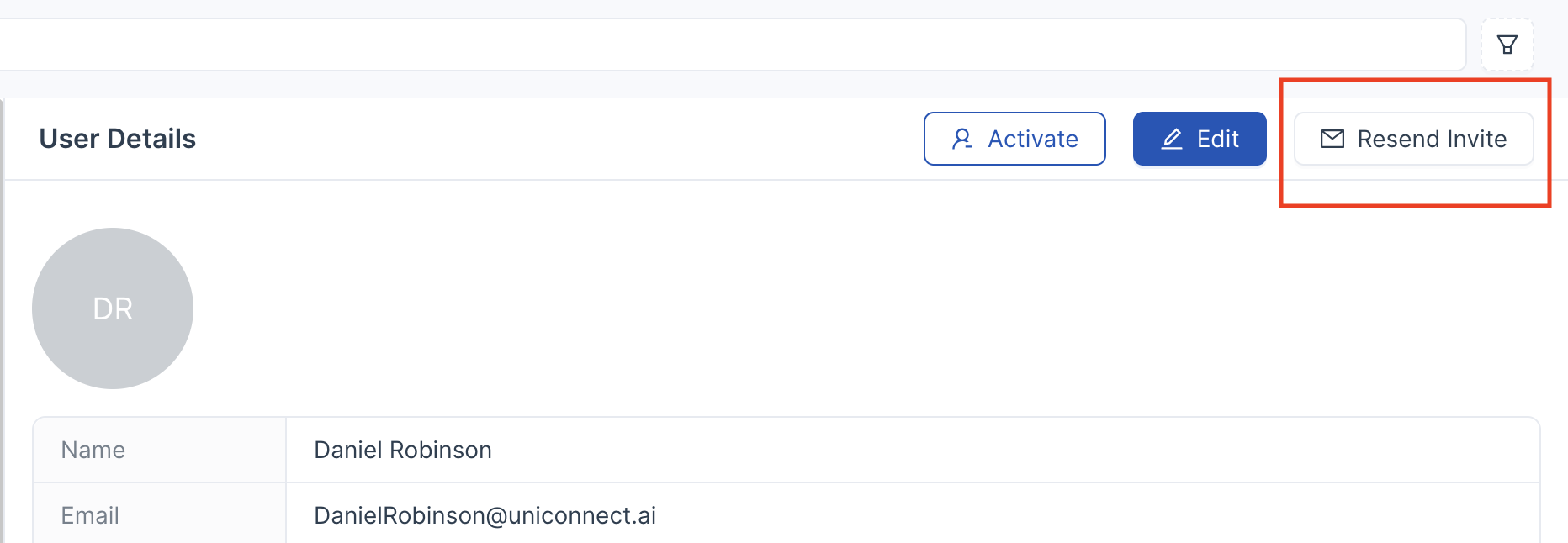
Open a user > Click Resend Invite.
Activate or Deactivate users.
After a user accepts the invitation to join Uniconnect AI, their account becomes Active. Active users can log in to the system and perform their assigned tasks.
If an employee leaves the organization or is unavailable for a long period, their Uniconnect AI account should be deactivated to ensure data security. Before deactivating a user, it is recommended to transfer the ownership of their records to another user. Once a user is deactivated, they will no longer be able to log in or access any CRM data.
User licenses in Uniconnect AI are based on the number of licenses purchased by the organization. When a user is deactivated, their license becomes available and can be reassigned to another user. If the organization does not plan to add another user, the license can be reduced according to the subscription plan.
What Happens When a User is Deactivated
- The user can no longer access the Uniconnect AI account.
- No one can log in using the deactivated user’s credentials.
- The user license becomes available and can be assigned to a new user.
- If required, the administrator can reactivate the user and send a new invitation.
To Deactivate a User
- Log in to Uniconnect AI
- Go to Users
- In the Users page, search for the user
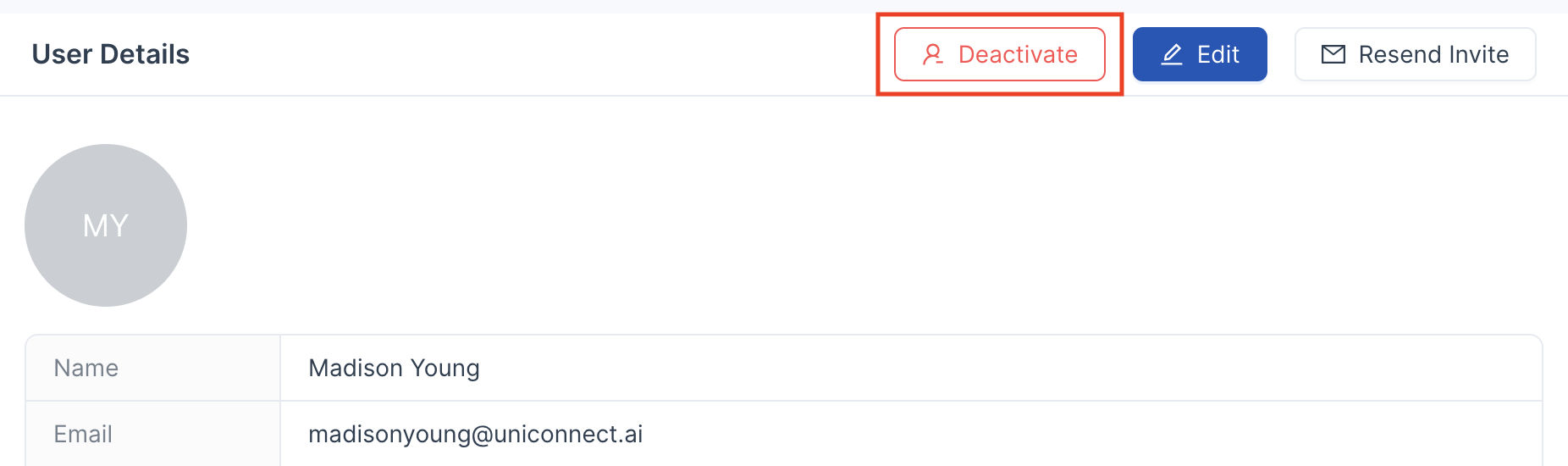
- Click Deactivate
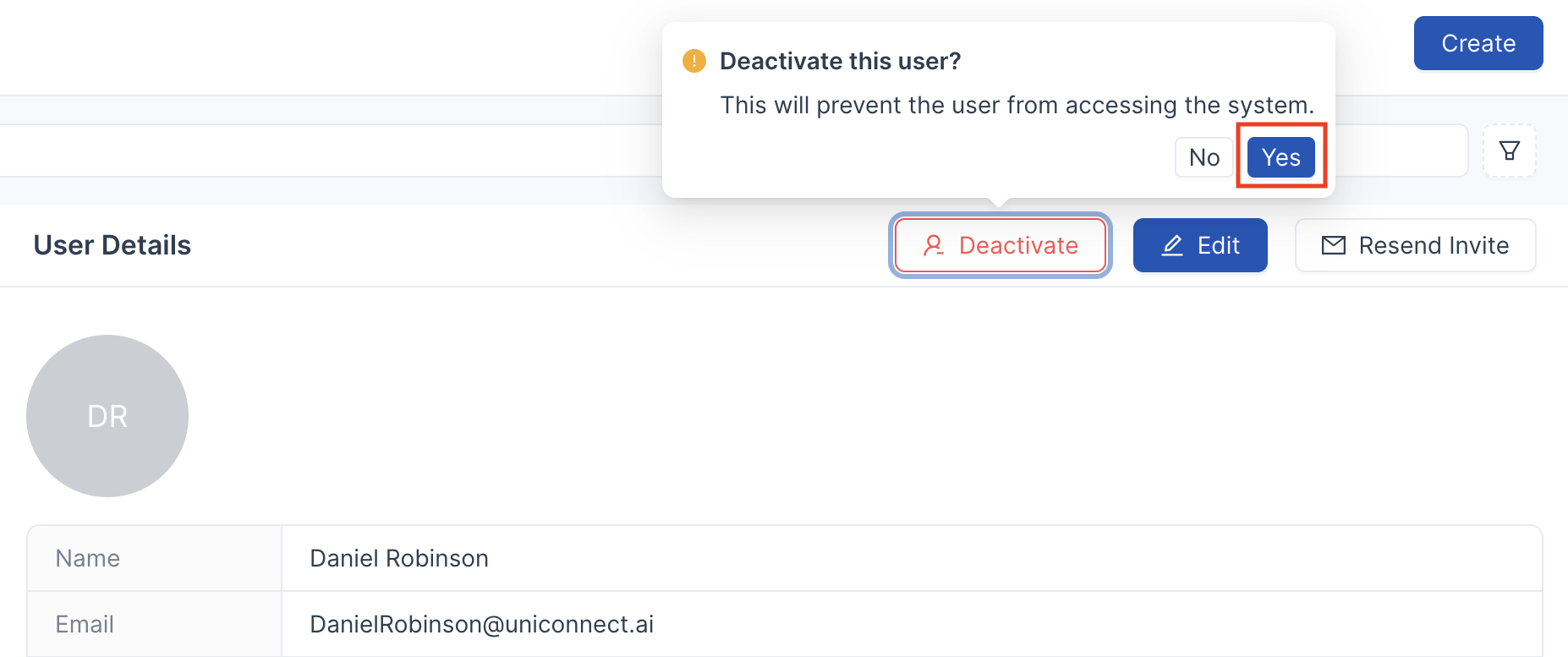
- Click Yes
The user account will be reactivated.
[!NOTE] Only users with Deactivate User permission can deactivate users (link to Role Management)
To Activate a User
- Log in to Uniconnect AI
- Go to Users.
- In the Users page, open an inactive user.
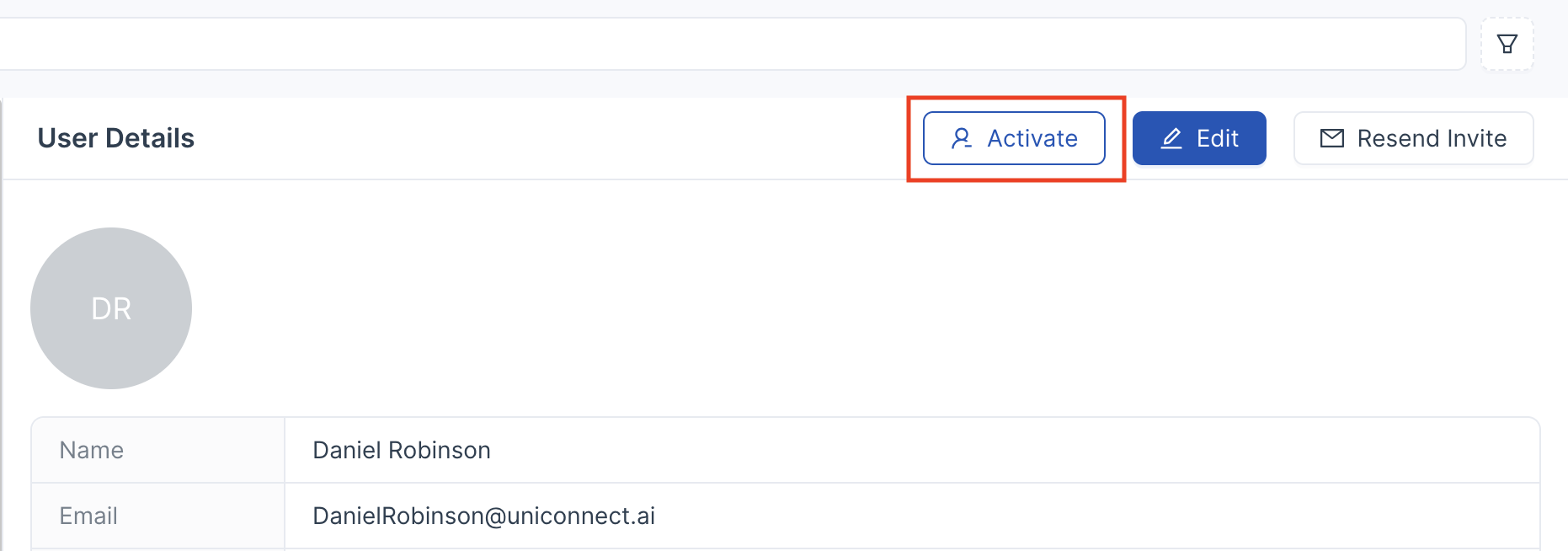
- Click Activate.
The user account will be reactivated.
[!NOTE] Only users with Update User permission can activate users (link to Role Management)