How to Configure Fields
Fields are the data columns in a module, such as Name, Email, or Ticket Priority. Every new module includes five default fields that cannot be removed: ID, Created By, Created At, Updated At, and Modified By. Additional fields can be added from the Fields tab using + New Field.
Adding custom fields is part of the Custom CRM Modules capability, available from the Starter tier and above.
Create a Field
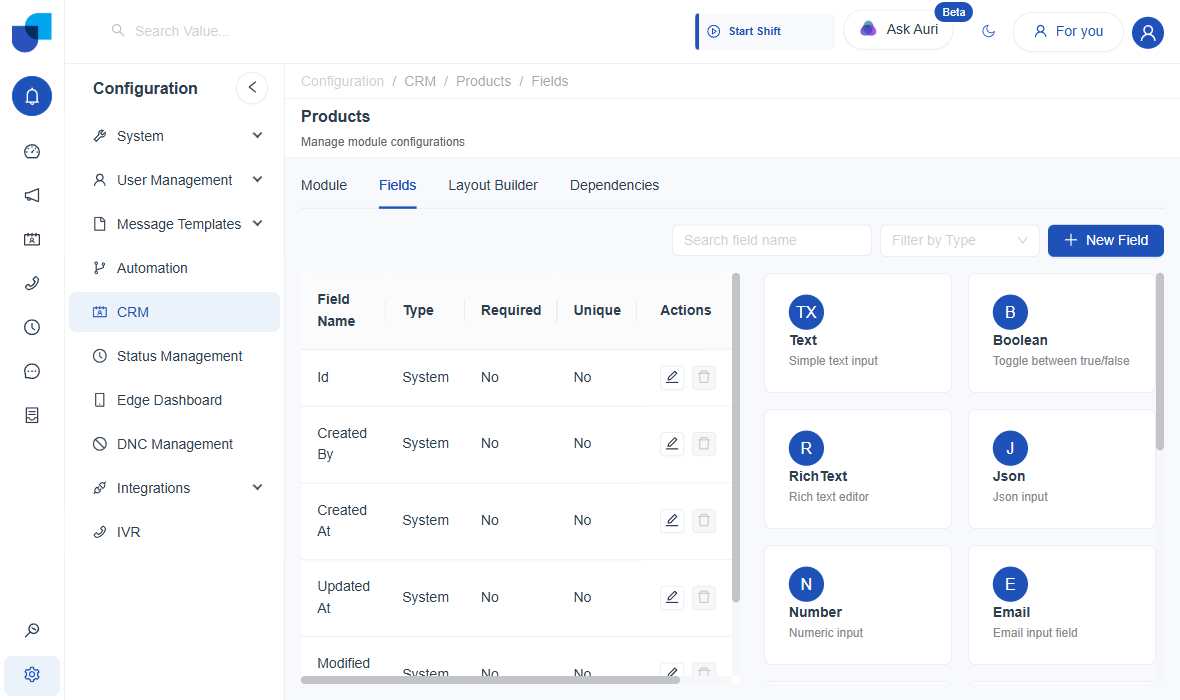
Clicking + New Field on a module's Fields tab opens this gallery of all 13 types.
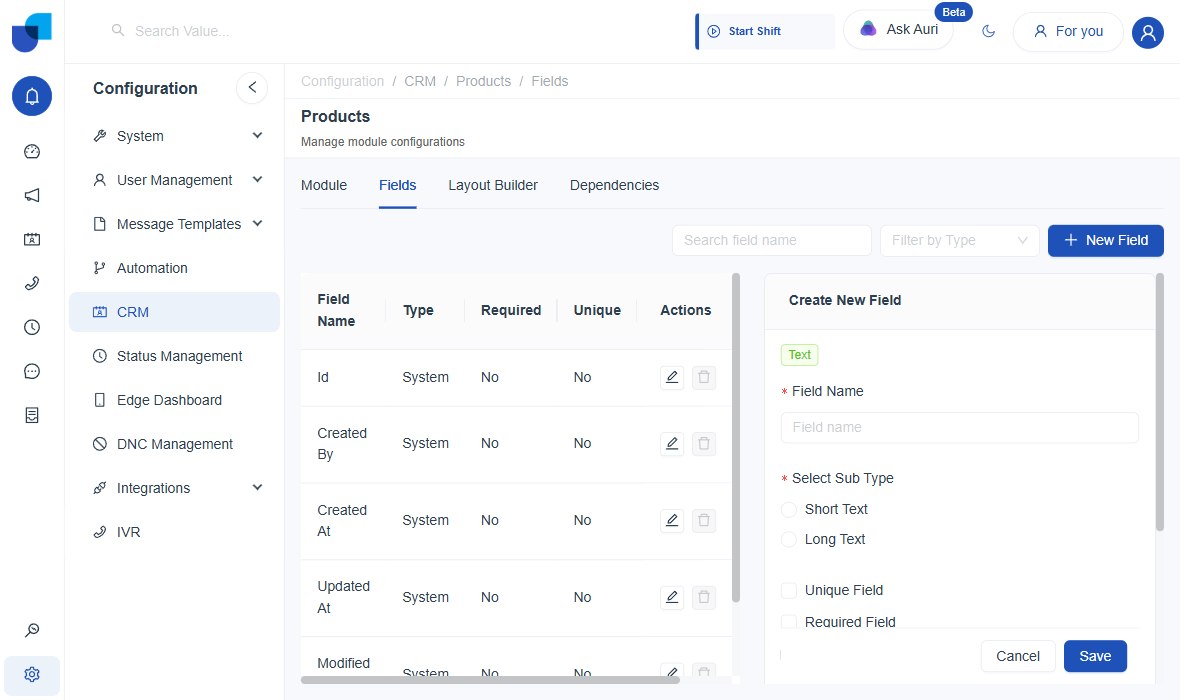
General settings
Every field type shares the same set of general-purpose settings below, plus whatever extra configuration that specific type needs.
| Setting | What it does |
|---|---|
| Field Name | The label shown on forms, tables, and menus. |
| Unique Field | No two records can share the same value in this field. Can't be combined with Required once the module already has data, unless the field was already both. |
| Required Field | The field must be filled in before a record can be saved. Turning this on for a module that already has records lets you type a one-time "default value for existing records" to backfill the blanks. |
| Default Value | A starting value new records get automatically, shown once Required is checked (or always, for Enumeration). |
| Editable | Whether people can change the value after the record is created. Turns off automatically if Read Only is on. |
| Read Only | Nobody can type into it directly. Useful for values the system fills in on its own. |
| Allow Multiselect | Lets more than one value be picked at once. Only shown for Enumeration, Media, and multi-record Relationship fields. |
| Allow Search | Whether this field's values can be searched. On by default for internal modules. |
| Allow Filter | Whether people can filter lists by this field. On by default for internal modules. |
| Status | Active/inactive switch for the field itself. Turn it off to retire a field without deleting its data. |
The 13 Field Types
| Type | Description |
|---|---|
| Text | Short or long free text |
| Boolean | A true/false switch |
| Rich Text | Formatted text editor |
| Json | Raw structured data |
| Number | Numeric values |
| Validated email address | |
| Date | Date picker |
| Enumeration | Pick one from a fixed list |
| Relationship | Link to another module's record |
| Phone Number | Validated phone number |
| Media | File / image upload |
| Sequence | Auto-numbered, e.g. TCK-0001 |
| Url | Validated web address |
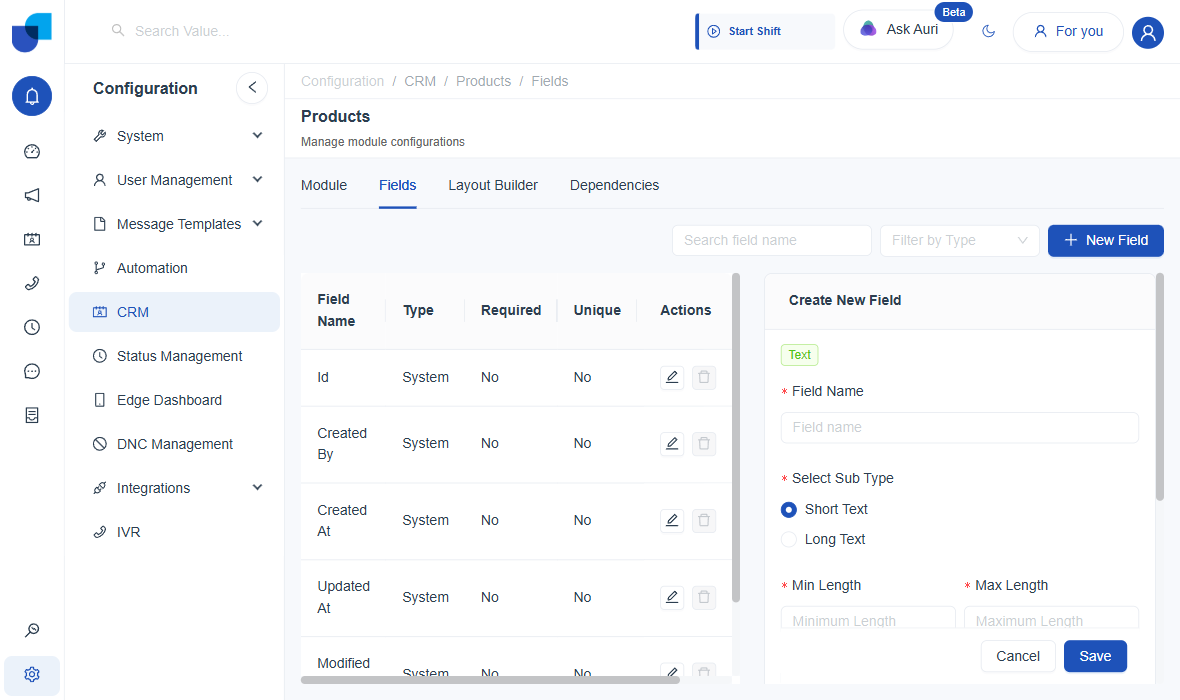
Text
A free-text field. Once saved, the sub-type can't be changed.
- Short Text: a single line, for things like names or titles. Also asks for a
Min Lengthand aMax Length(in characters), both required, with Max needing to be bigger than Min. - Long Text: a multi-line paragraph box. No extra settings.
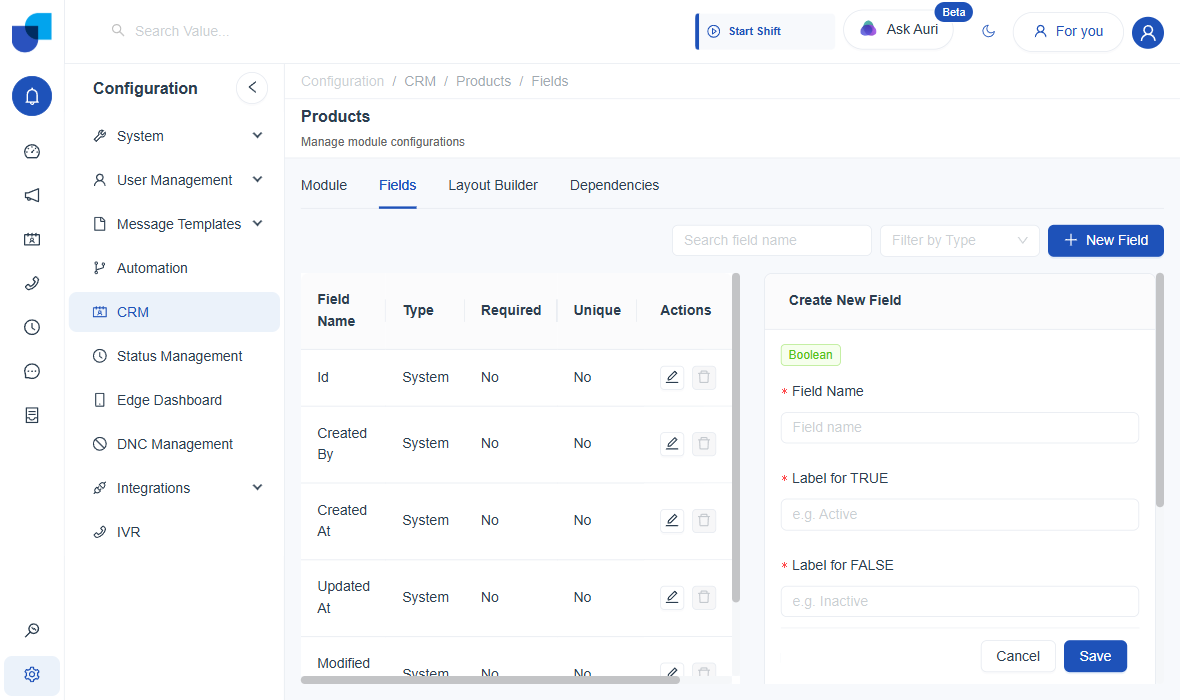
Boolean
A simple on/off switch on the record. Use it for yes/no questions like "Is Active" or "Opted In."
- Label for TRUE: what the "on" state is called, e.g. "Active."
- Label for FALSE: what the "off" state is called, e.g. "Inactive."
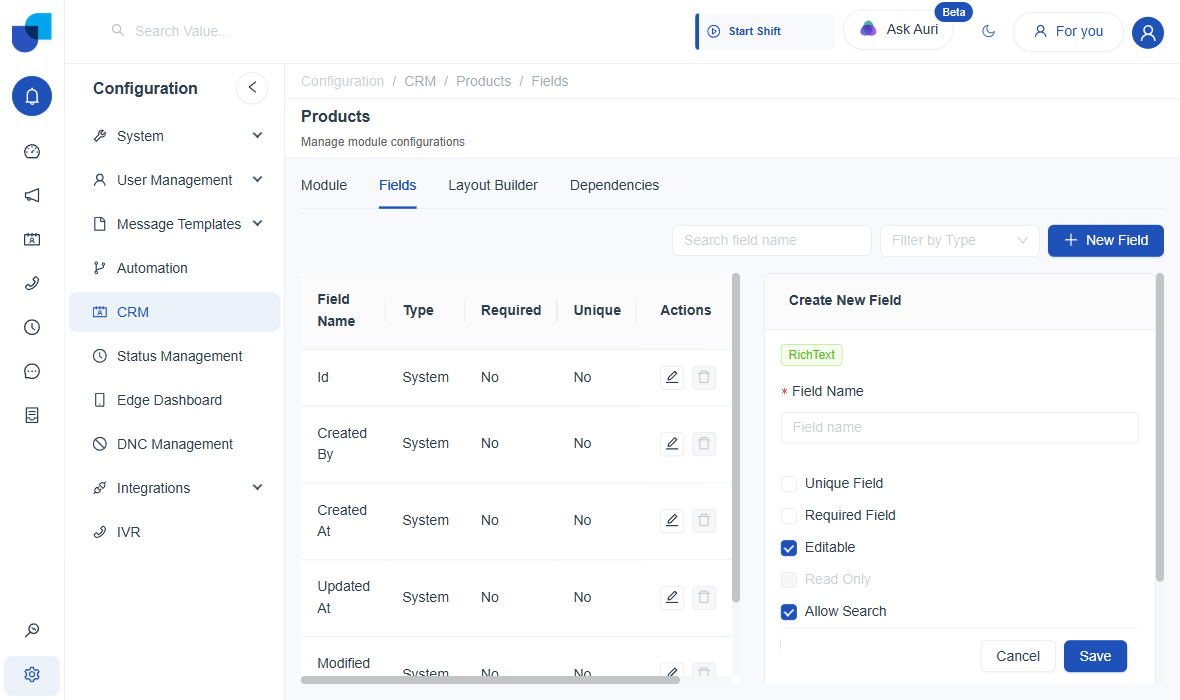
Rich Text
A full text editor with formatting: bold, lists, links. Good for notes or descriptions longer than a line. No type-specific settings beyond the general ones above.
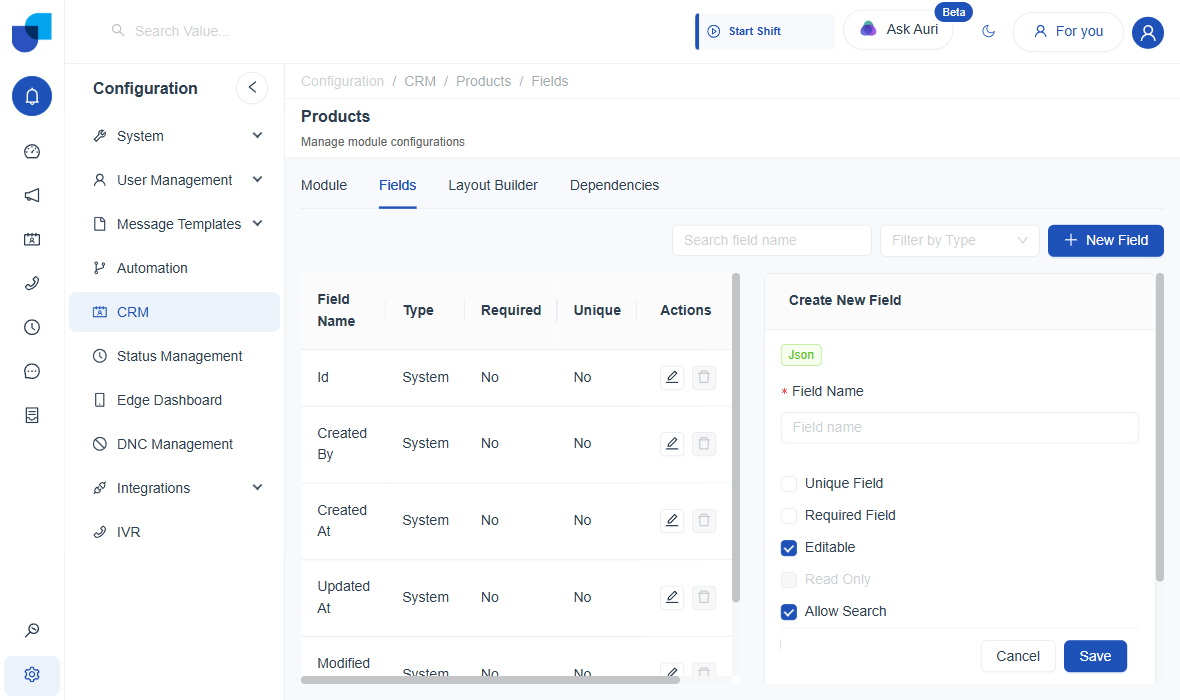
Json
Stores raw structured data. This is a technical field type; only use it if you know the exact shape of data you're storing. No type-specific settings beyond the general ones above.
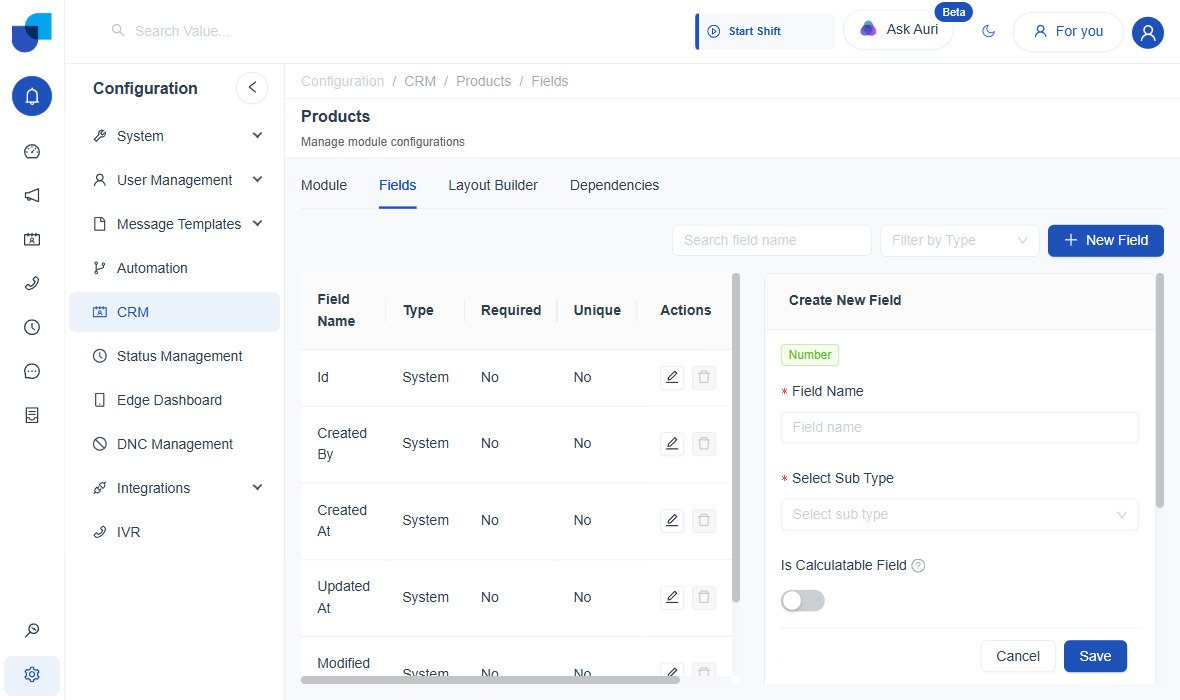
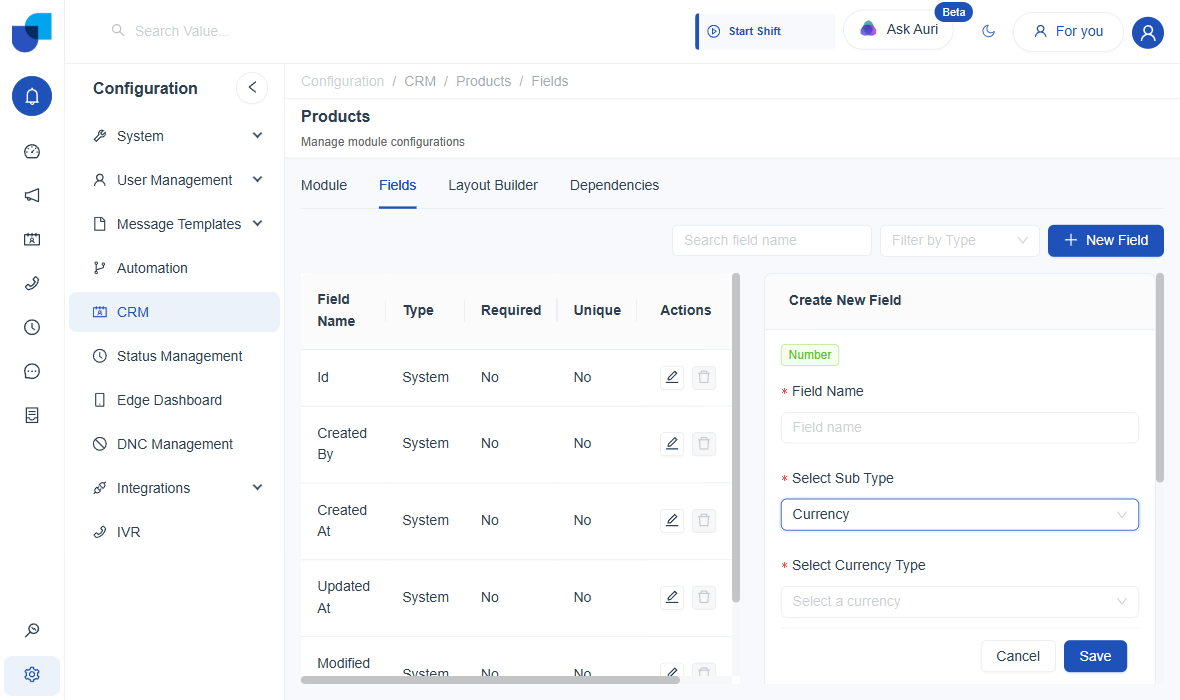
Number
For anything numeric: quantities, amounts, scores.
- Integer: whole numbers only.
- Decimal: asks for the Number of Decimal Values to keep (e.g. 2 for "10.00").
- Currency: asks you to pick a Currency Type from every world currency (e.g. "USD – US Dollar"); decimals default to 2.
- Percentage: decimals default to 2 as well.
- Is Calculatable Field: a switch (shown for every sub-type) marking this field as one a formula can compute automatically instead of someone typing it in.
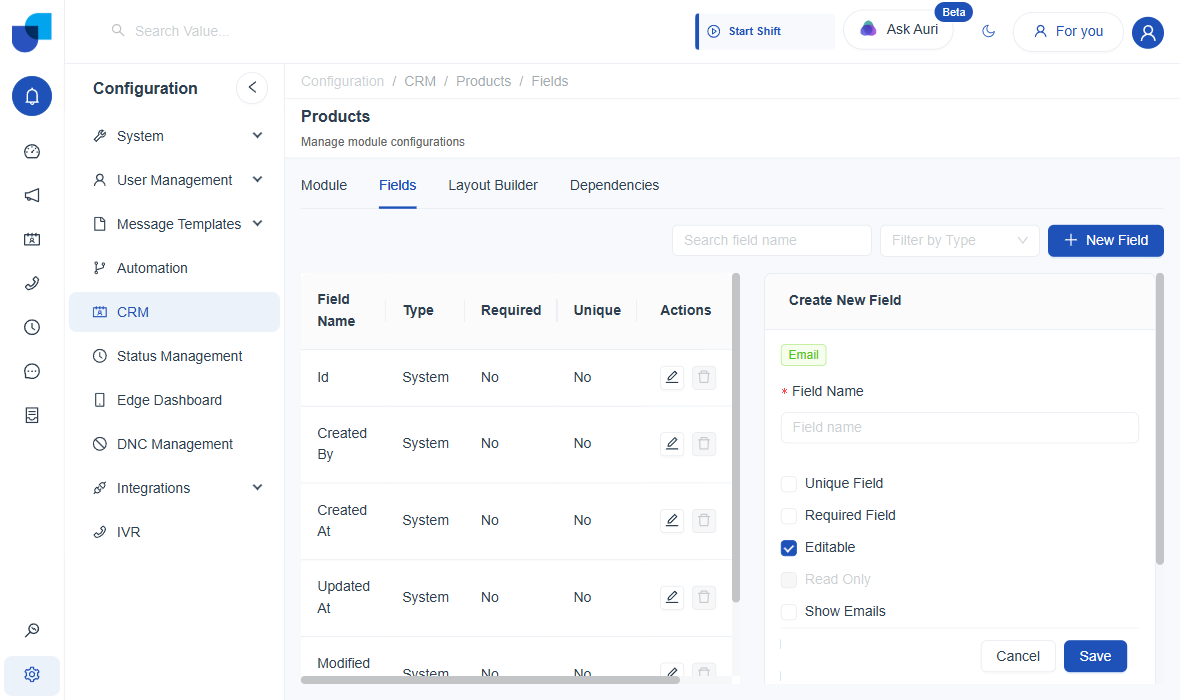
Email
Validates that whatever's typed looks like a real email address before it saves.
- Show Emails: when on, the record view can show related email activity for this address.
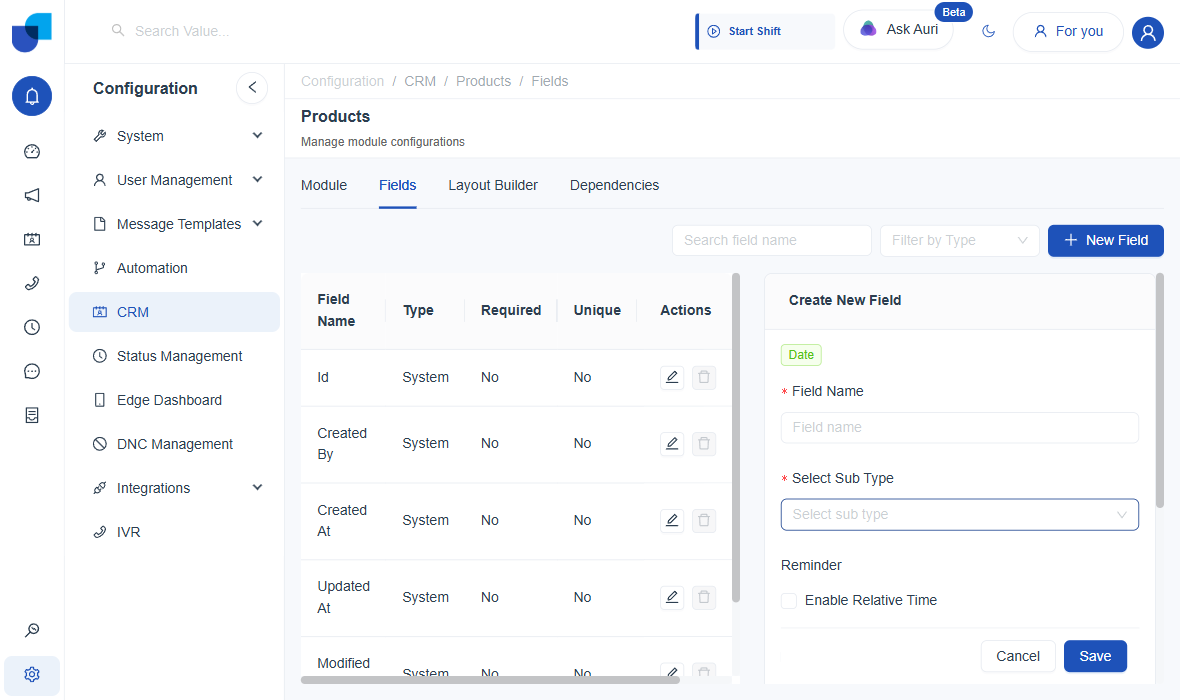
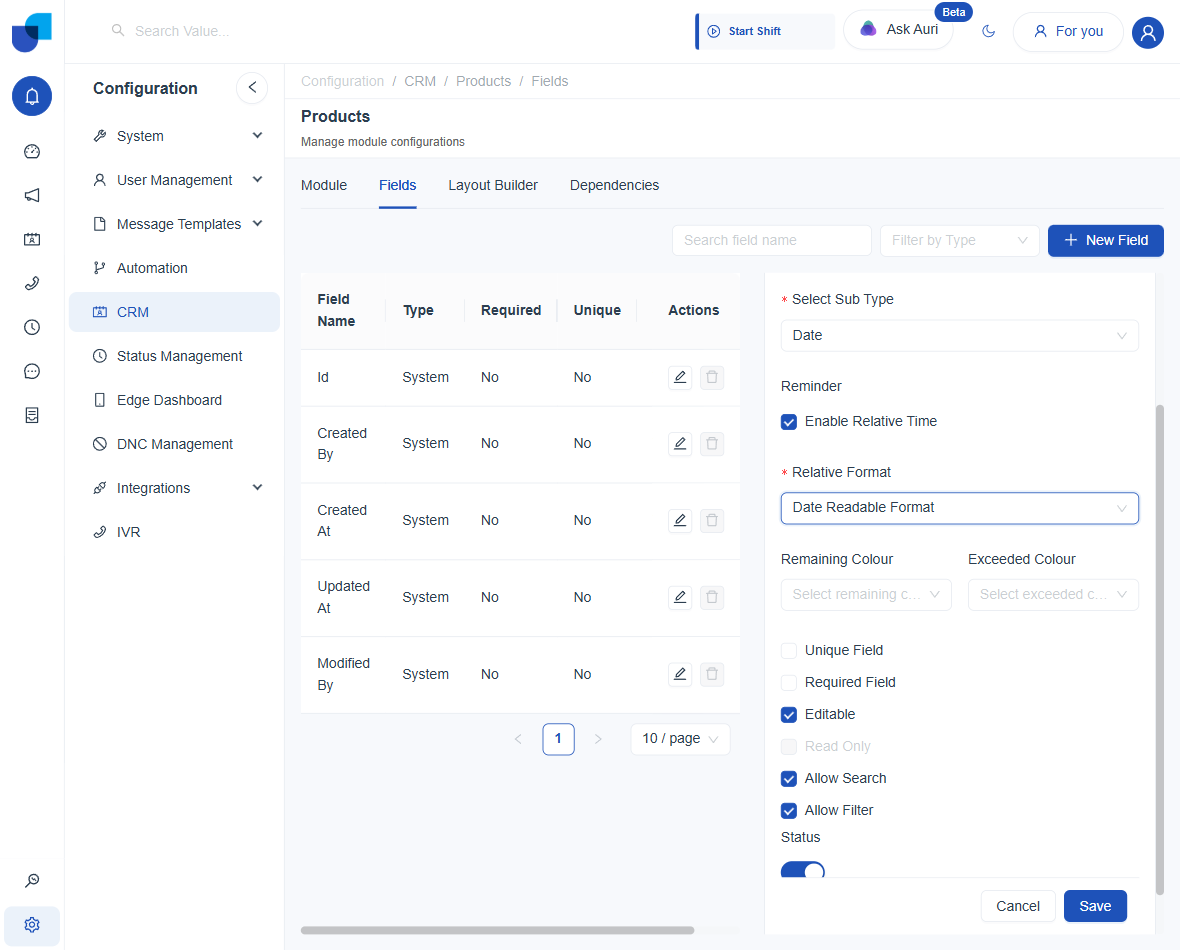
Date
A date picker.
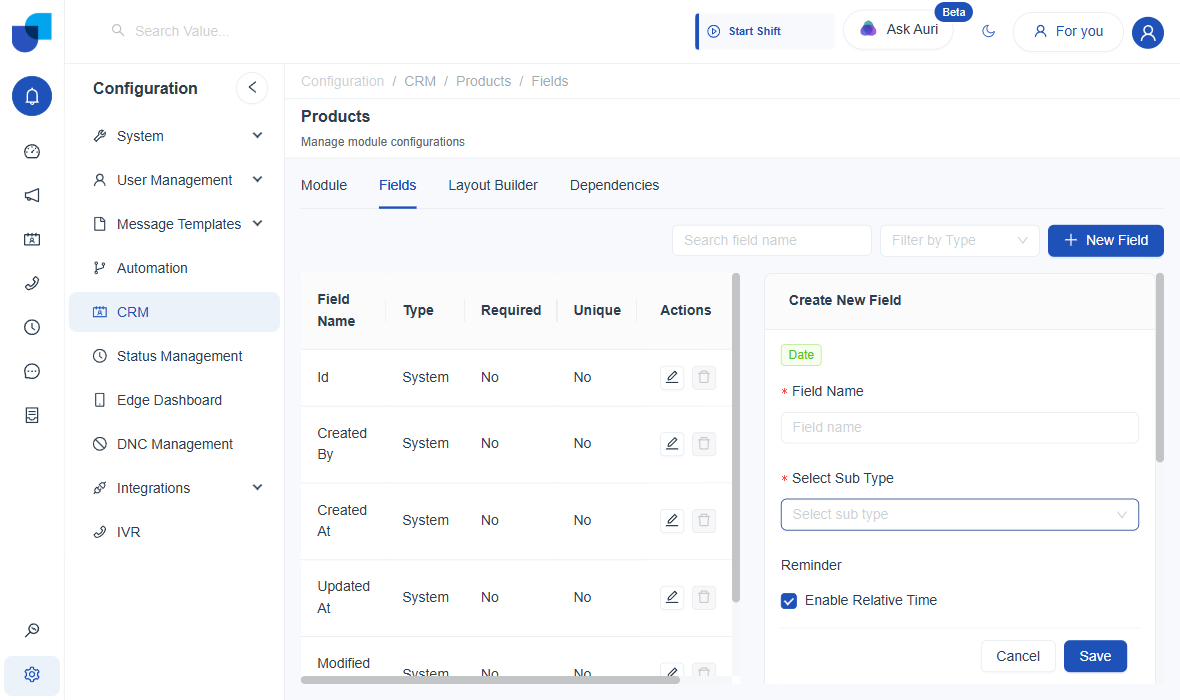
- Date, Date Time, or Time: what's actually captured.
- Reminder (Enable Relative Time): turns the value into a countdown/elapsed display (e.g. "in 3 days") instead of a plain date.
- Relative Format: the display pattern; the choices offered change based on whether you picked Date, Date Time, or Time.
- Remaining Colour: the color shown while time is still left.
- Exceeded Colour: the color shown once the date/time has passed.
Enumeration
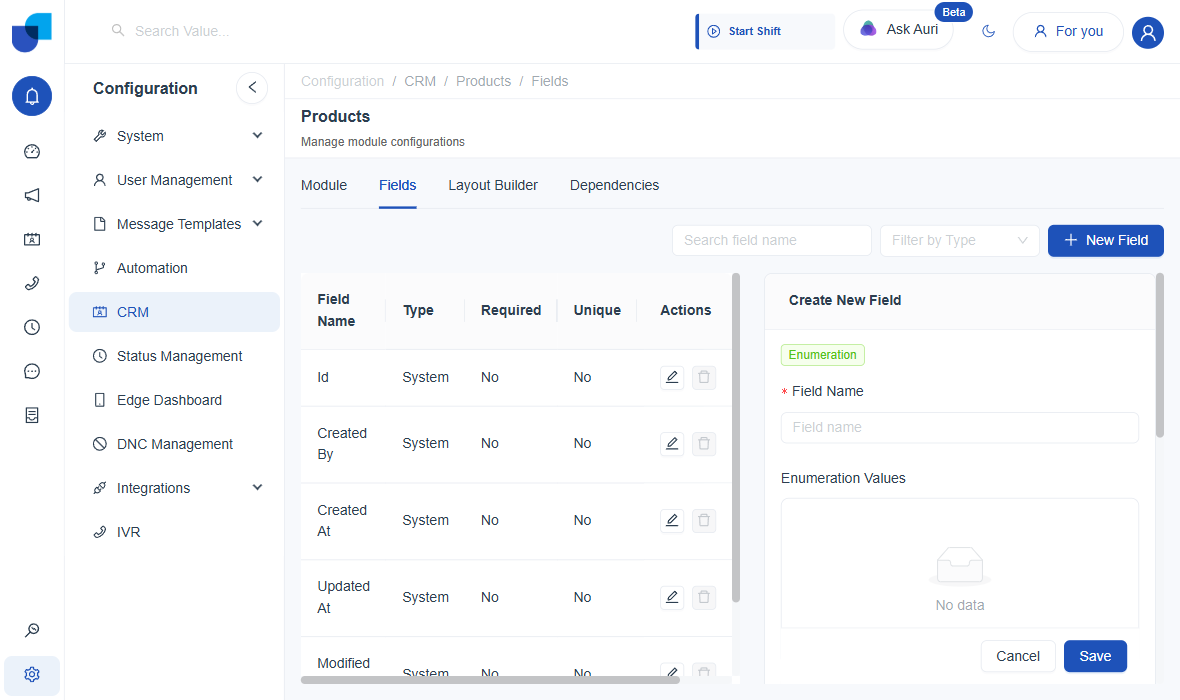
A dropdown with a fixed list you define, e.g. "Priority: Low / Medium / High."
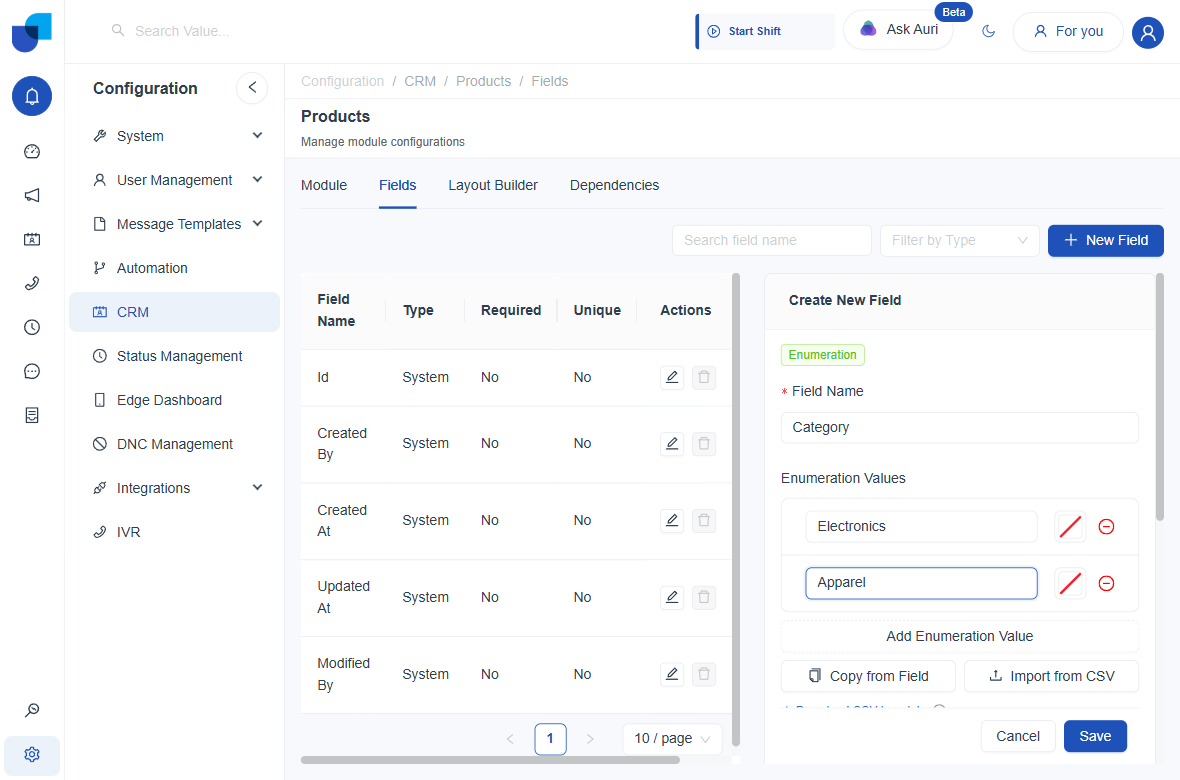
- Enumeration Values: the list itself; each row has a label, a color, and a delete icon. + Add Enumeration Value adds a blank row.
- Copy from Field: pulls the values from an existing Enumeration field on another module (pick the module, then the field) so you don't retype a list that already exists elsewhere.
- Import from CSV: upload a
.csvfile with anamecolumn (required) and an optionalcolorcolumn; duplicate names are skipped automatically. A Download CSV template link and an Export values link are both provided. - Allow Multiselect: lets people pick more than one value at once.
Relationship
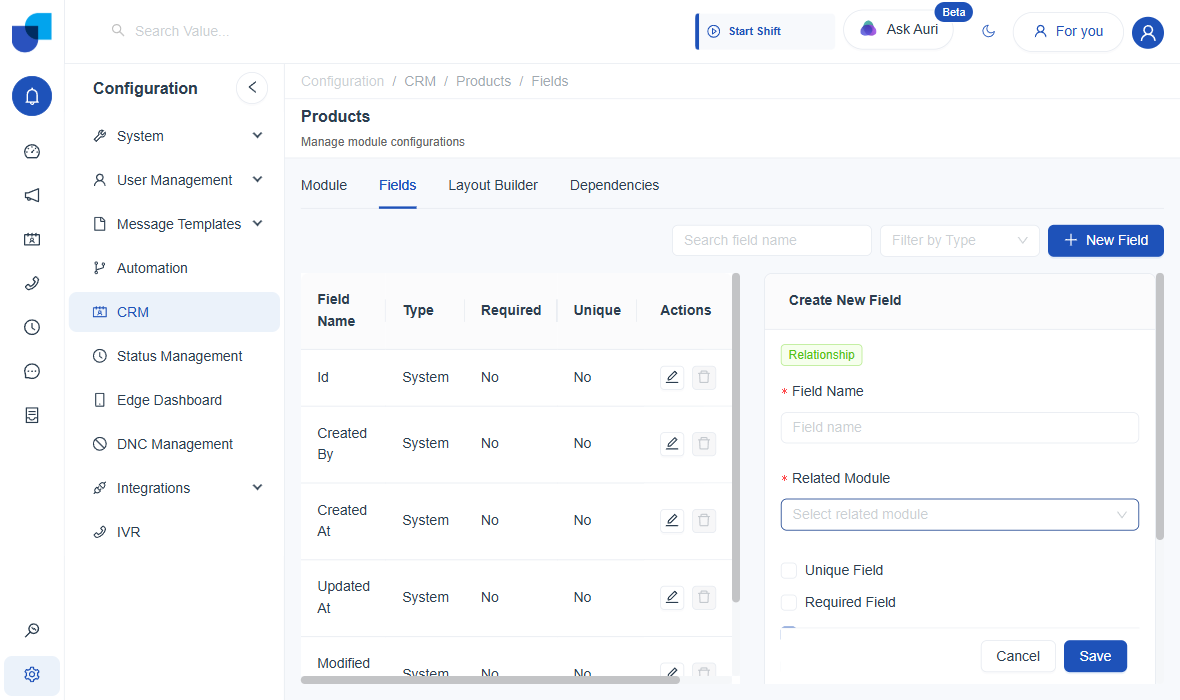
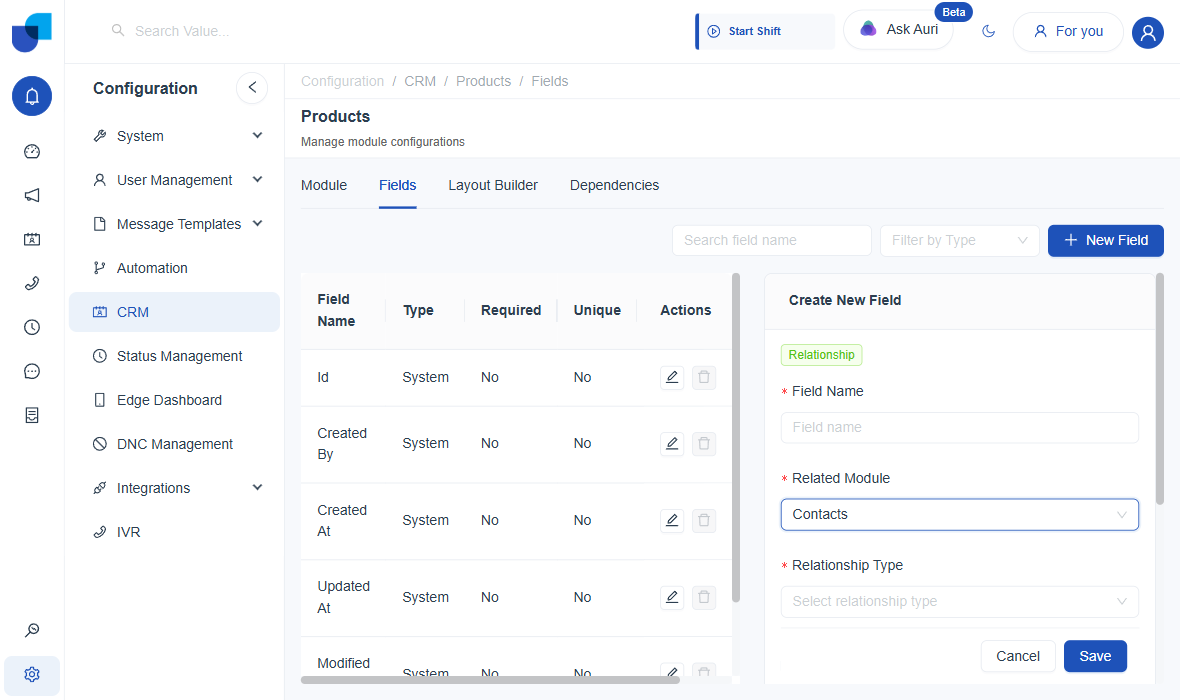
Links this record to a record in another module, e.g. a Contact's "Organization" field pointing at the Organizations module. The related module and the relationship type can't be changed once saved.
- Related Module: which other module this field points to.
- Relationship Type: how the two modules connect (the four options are explained below).
- Display As Section: (only for the "one record" relationship types) shows the linked record's own fields inline as a section on this record, instead of just a picker.
- Allow Multiselect: (only for the "many records" relationship types) lets more than one linked record be attached.
The Four Relationship Types
Opening the dropdown shows all four cardinalities in one list.
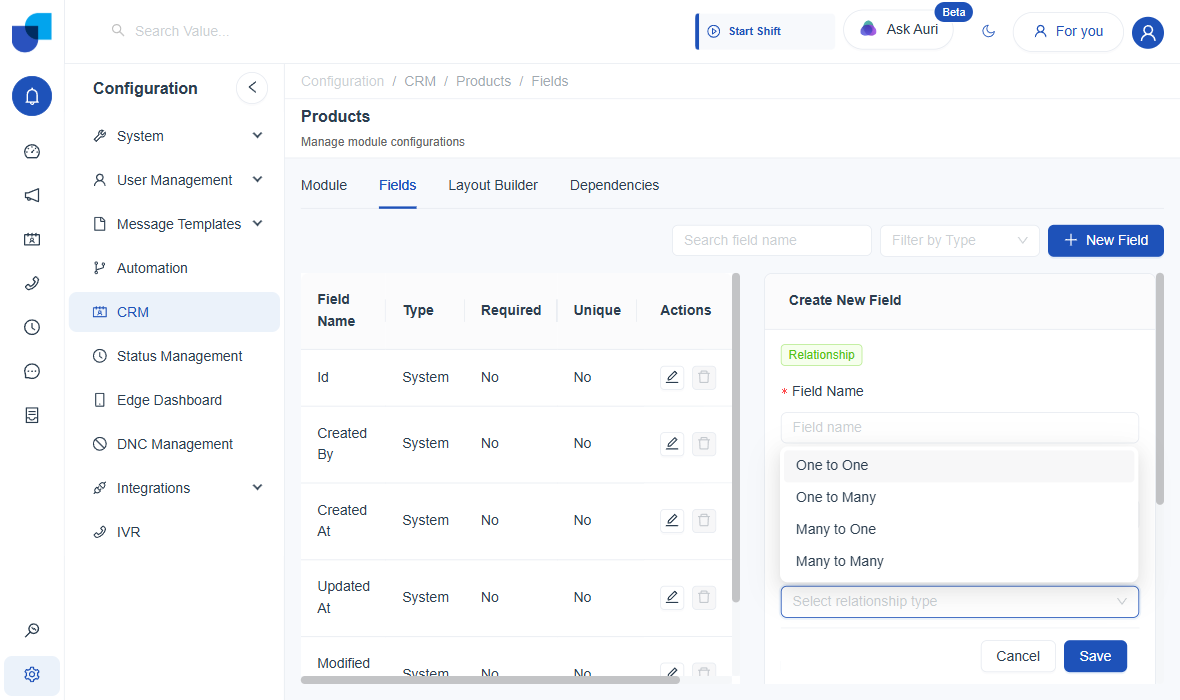
| Type | Meaning | Typical use |
|---|---|---|
| One to One | Each record on both sides links to exactly one record on the other side. | A Ticket's dedicated escalation record; a User's single profile record. |
| One to Many | One record on this side can link to many records on the related side; each of those links back to just one record. | One Organization to many Contacts. |
| Many to One | Many records on this side link to a single record on the related side. | Many Tickets to one Contact, the reverse of One to Many. |
| Many to Many | Either side can link to any number of records on the other side, with no single-link constraint. | Contacts belonging to multiple Groups, and Groups holding multiple Contacts. |
One to One
Selected directly, on a new Primary Contact field on the Products module, pointing at Contacts:
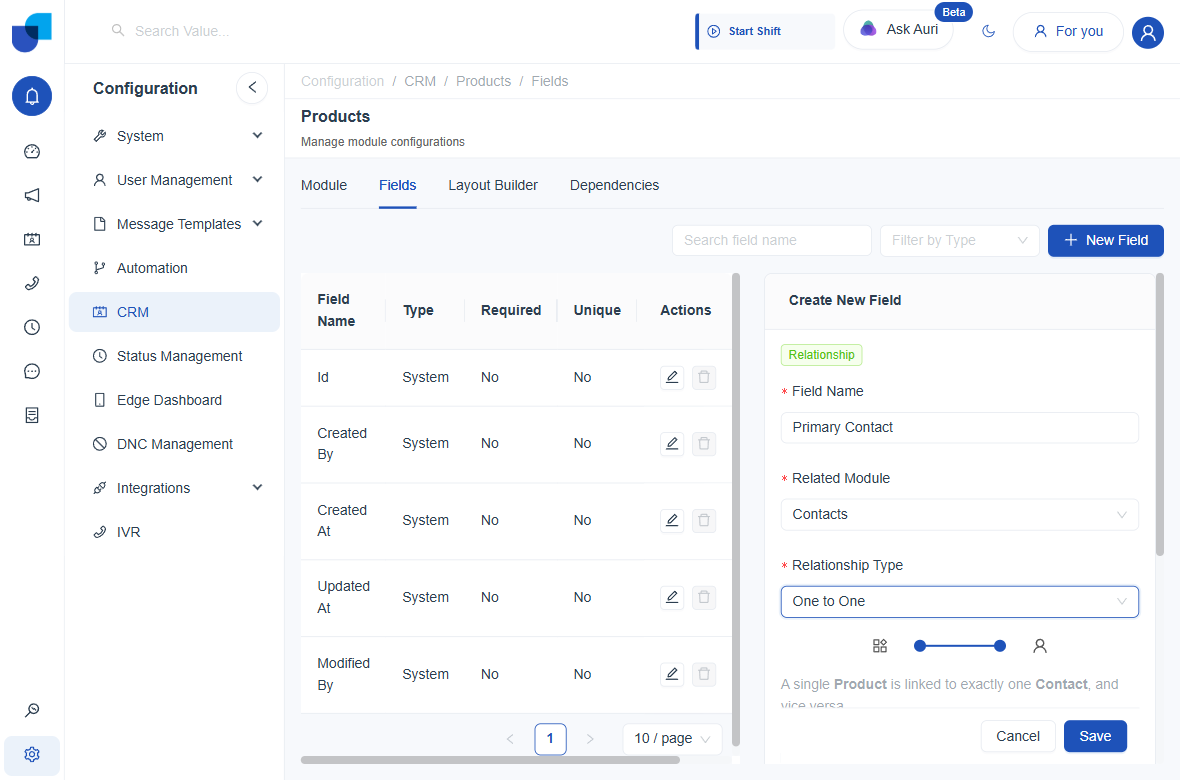
"A single Product is linked to exactly one Contact, and vice versa."
Choosing One to One also auto-enables and locks Unique Field, since the system enforces the "exactly one" constraint at the data level. It also reveals a Display As Section checkbox not shown for other types.
One to Many
The inverse of Many to One below: pick this on the side that can hold multiple links. Selected on a new field on the Products module linking to Organizations:
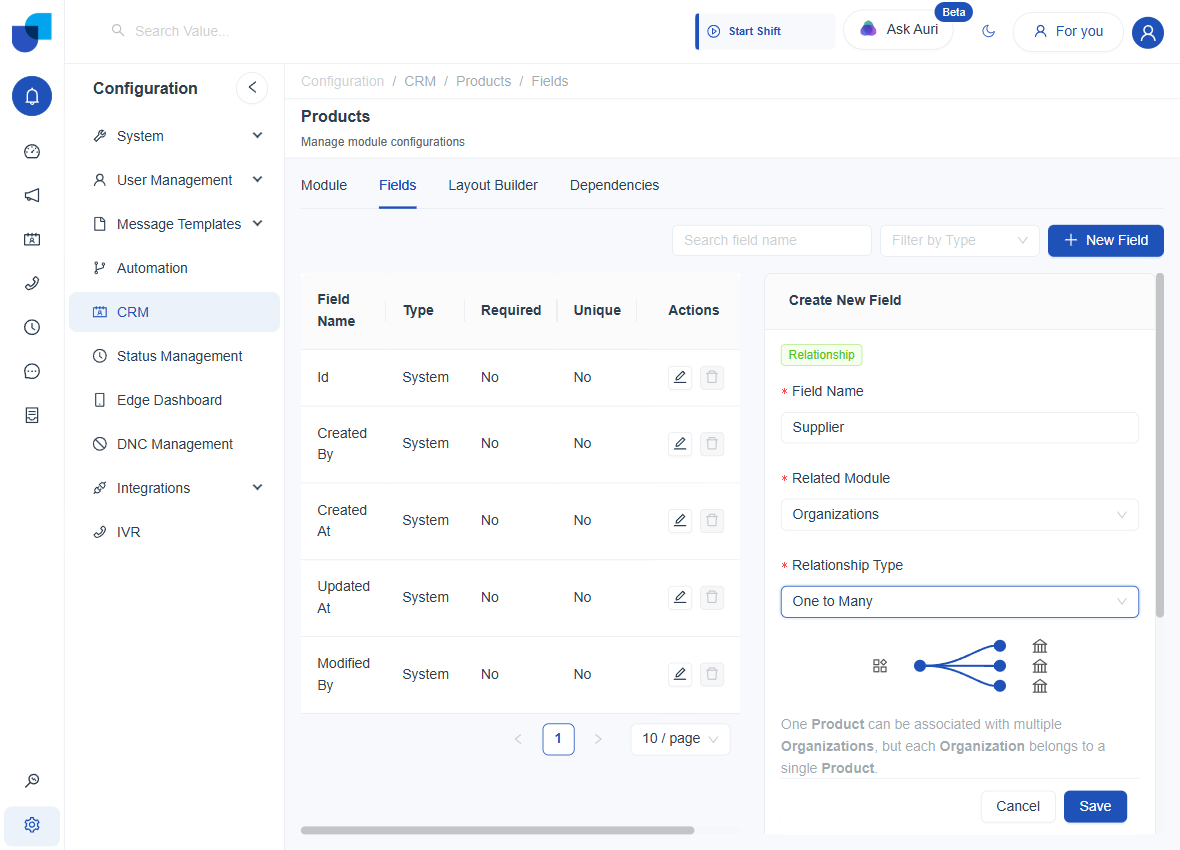
"One Product can be associated with multiple Organizations, but each Organization belongs to a single Product." This is the same relationship Contact ↔ Ticket already demonstrates from the other direction.
Many to One
The inverse of One to Many above: pick this on the side that can only hold a single link. Selected on the same Primary Contact field on the Products module, switched from One to One to Many to One:
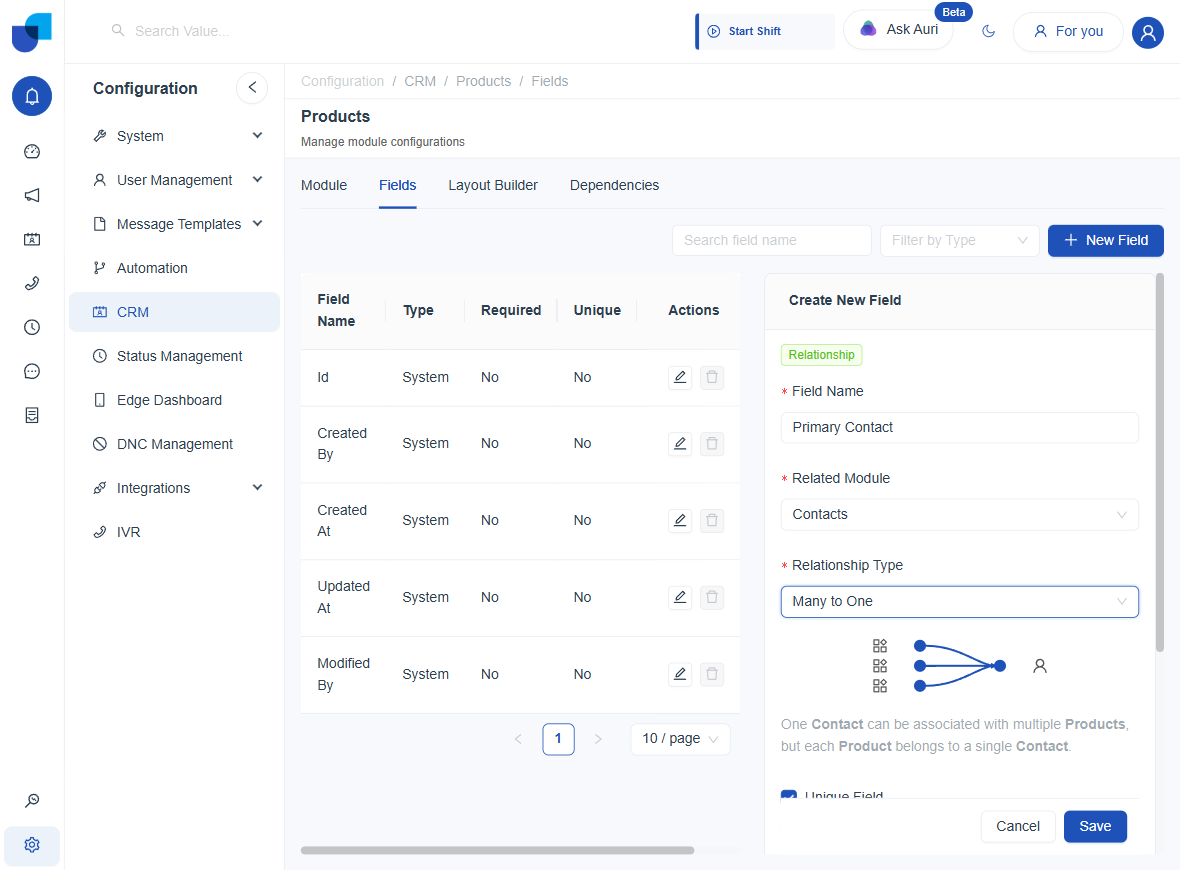
"One Contact can be associated with multiple Products, but each Product belongs to a single Contact."
Many to Many
The least constrained option: no uniqueness is forced on either side, and neither module is limited to a single link. Selected on a new field on the Products module linking to Groups:
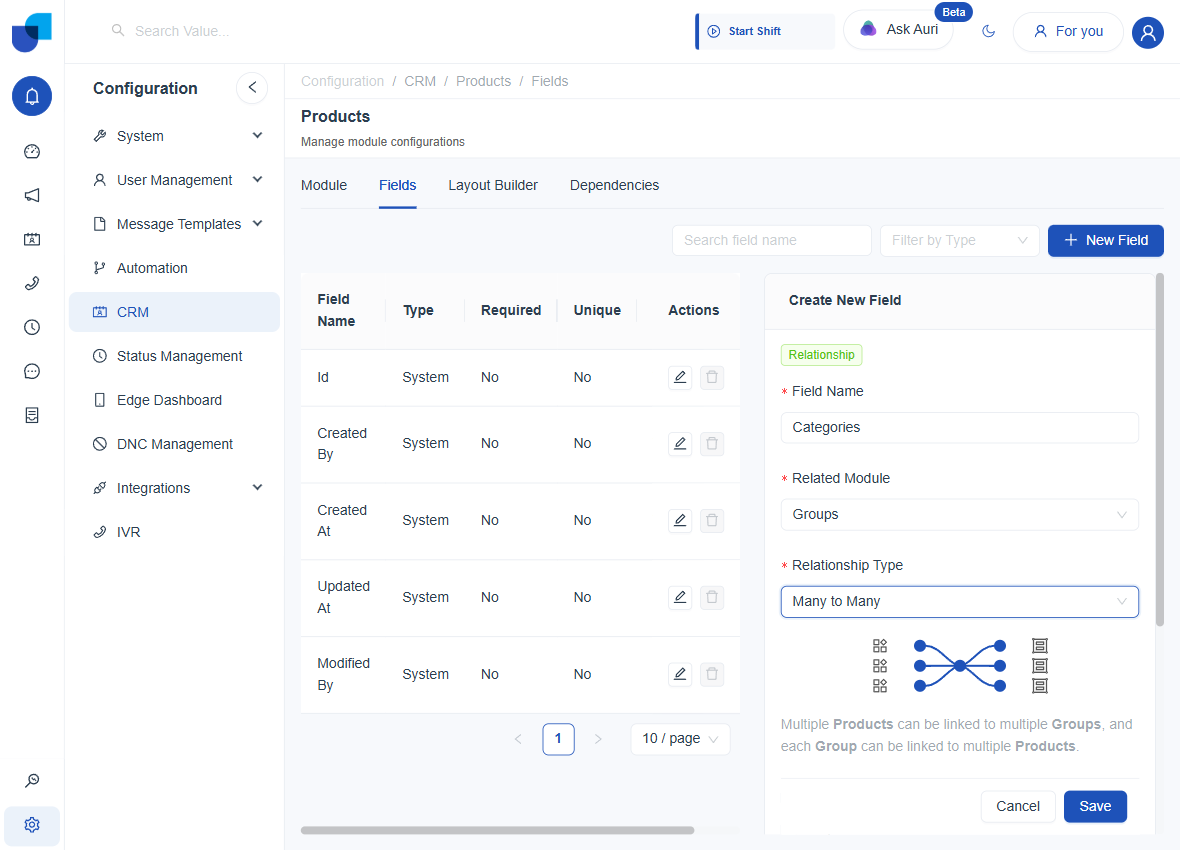
"Multiple Products can be linked to multiple Groups, and each Group can be linked to multiple Products."
Use it for associations like tagging a Contact into several Groups, where both sides can hold multiple simultaneous relationships without one owning the other.
The Automatic Reverse Field
A Relationship field never stores data in one direction only. Defining Contact on Tickets (Many to One, pointing at Contacts) automatically creates a matching field on the far side.
| Field name | Type | Created by |
|---|---|---|
refcrmTicketsassignedUser | Reference | A Relationship field named "assignedUser" defined on Tickets, pointing at Users. |
refcrmQaCrmDoNotDeleterelationship | Reference | A Relationship field on the "QA CRM – Do not Delete" test module, pointing at Users. |
Reference fields of this kind stay non-editable and can't be added by hand: they exist purely so the related module knows what points at it, and they disappear automatically if the source Relationship field is removed.
Phone Number
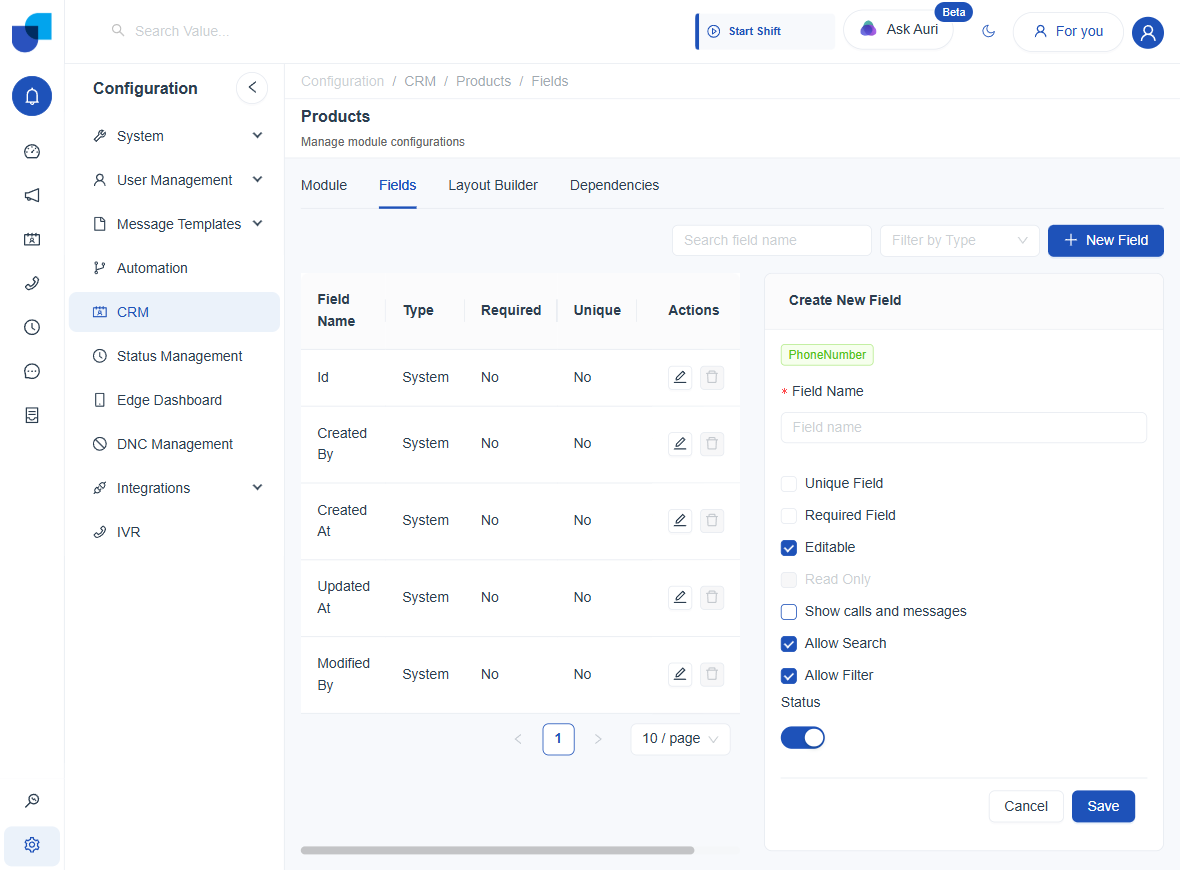
Validates the input as a phone number, split into a country code and the number itself, in a form ready to dial directly from the record.
- Show calls and messages: when on, the record view shows the call/message history for this number.
Media
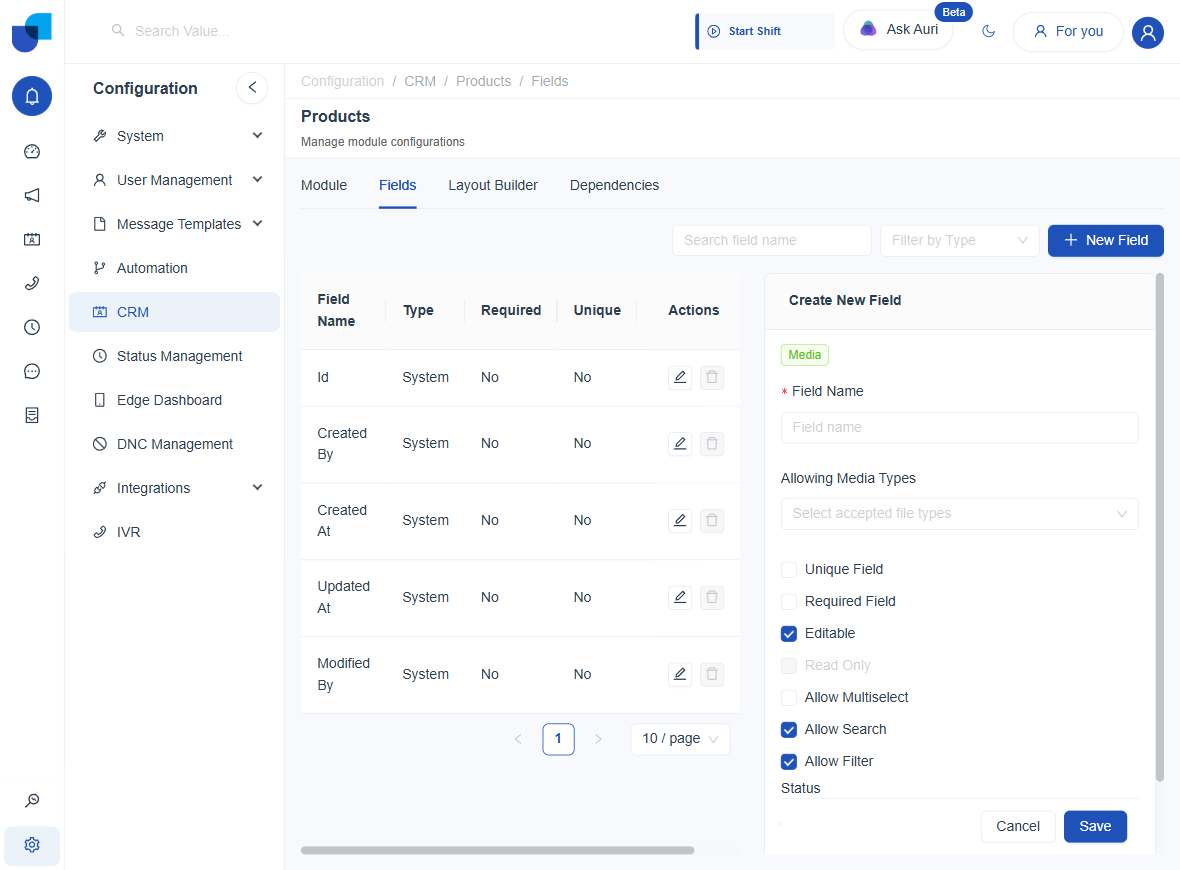
Lets people attach a file or image to the record: a signed contract, a photo, a screenshot.
- Allowing Media Types: tick which file categories are accepted: Images, Documents, Csv & Data, Audio, Video. Leaving all unticked accepts anything.
- Allow Multiselect: lets more than one file be attached at once.
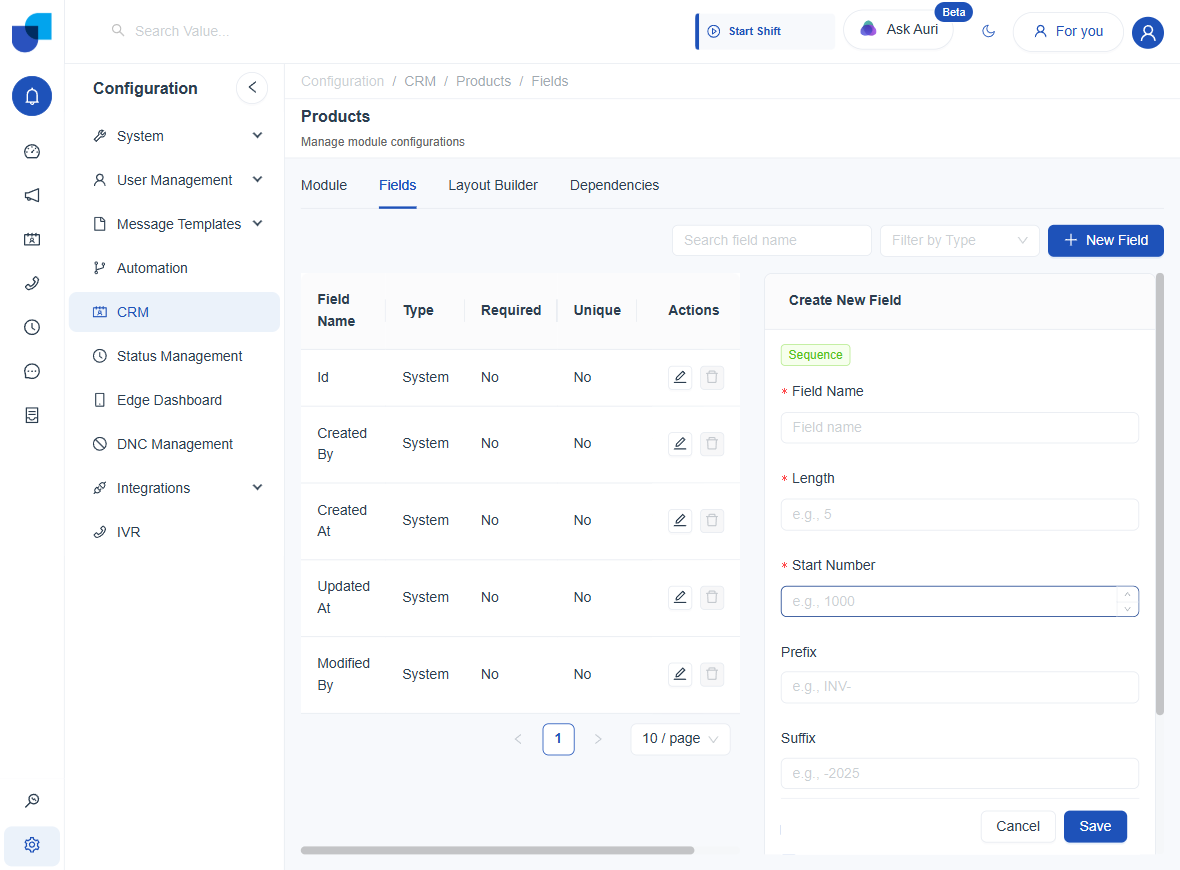
Sequence
Auto-generates a unique, incrementing value for every new record: useful for ticket numbers or reference codes. Sequence fields skip the general Unique/Required/Editable settings, since the system always fills them in on its own.
- Length: how many digits the number is padded to, e.g. 5 digits →
00001. - Start Number: the first number the sequence counts up from.
- Prefix: optional text before the number, e.g.
INV-. - Suffix: optional text after the number, e.g.
-2025.
Example: Length 5, Start 1, Prefix INV- → first record gets INV-00001.
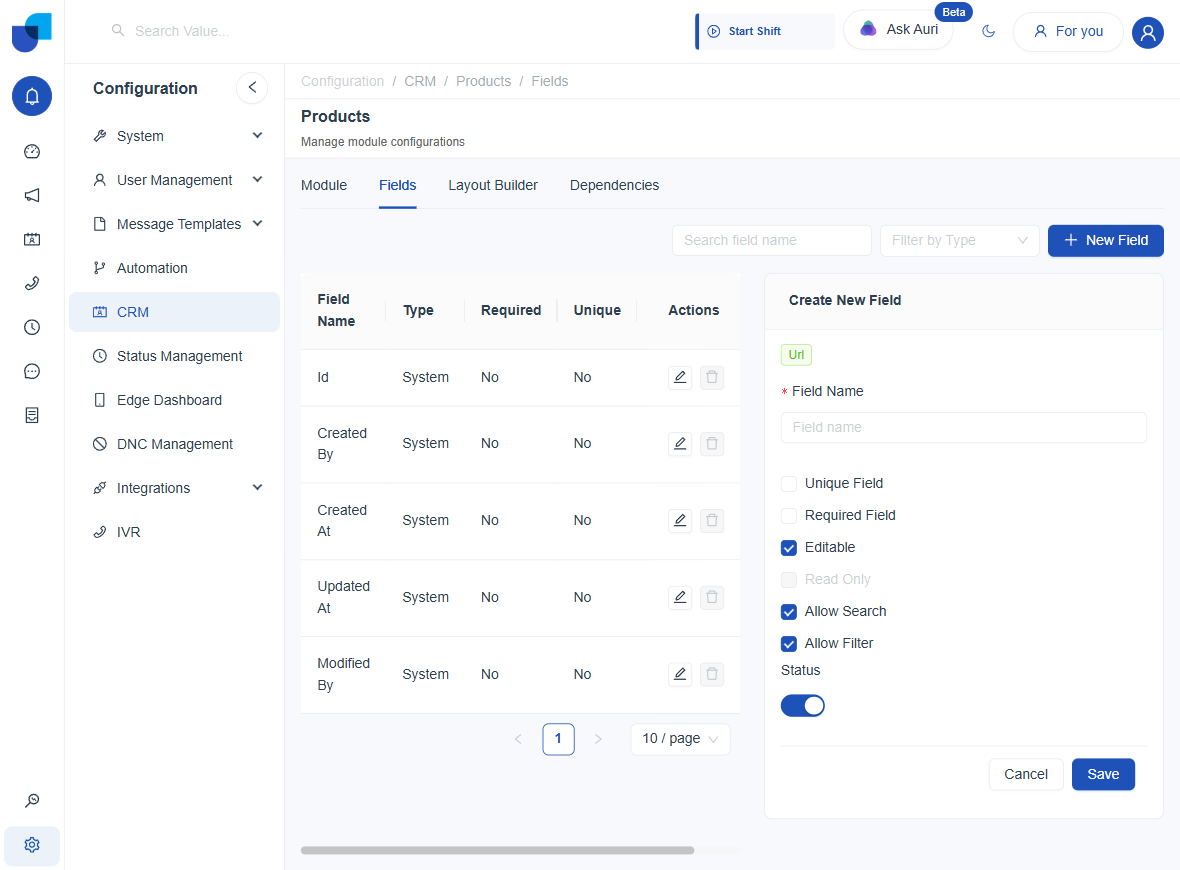
Url
Validates the input as a web address, and can be shown as a clickable link on the record. No type-specific settings beyond the general ones above.